How to Animate a Sprite Sheet in JavaScript Canvas
Sprite sheet animation is a technique used to display frame-by-frame motion by switching between multiple images stored inside a single image file. It is commonly used in games, character animations, loaders, and interactive web experiences for smooth and efficient rendering on modern websites and web apps. In this article, we'll learn how to animate a sprite sheet from scratch using the JavaScript Canvas API.
Look at the following sprite animation example. Try holding one of the action buttons to see how the animation changes.
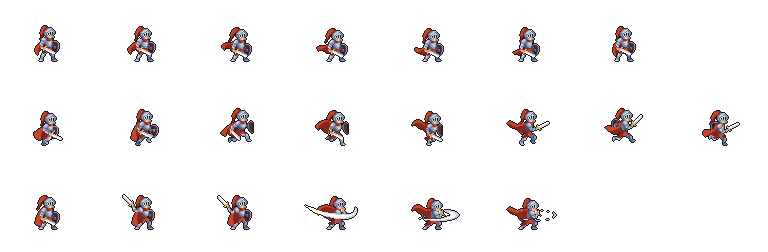
To create a sprite animation, you will need a sprite sheet image. A sprite sheet image contains all the
frames for each animation in the same-sized grid. Look at the following sprite sheet that we have used
in the example above. It has three different animations and 96 x 84-sized frames for each animation placed within
each row.
Knight 2D Pixel Art by Mattz Art
First, we create a canvas element with any required size.
<canvas width="96" height="84"></canvas>
Then we can detect the canvas element within JavaScript and also obtain its 2D context to access its
rendering features. Also, we need to define relevant information about the frame mapping within the sprite sheet.
Additionally, we define the width and height of a single action frame and the duration to display a
single frame while running the animation loop.
// get canvas element and context
const canvas = document.querySelector("canvas")
const context = canvas.getContext("2d")

// action ids array ordered same as in sprite sheet
const actionIds = ["idle", "run", "attack"]
// frame count for each action
const frameCounts = { idle: 7, run: 8, attack: 6 }

// width and height of a single frame
const frameWidth = 96
const frameHeight = 84

// time duration for a one frame
const frameDuration = 90
Now we can create the function for the animation loop. We are using the requestAnimationFrame, which is recommended for maintaining a good performance level. When we
trigger our function with requestAnimationFrame, it returns us the current timestamp, which is
important to calculate the spent time using the delta time value. So the timer variable
will collect the delta amounts, and when it reaches the frame duration, it will be reset by only
keeping the remaining time. This exceeding moment is where we draw the next sprite frame
on the canvas.
// time counter
let timer = 0

// previous timestamp
let previousTime = 0

// method to update animation loop
const update = currentTime => {
  // calculate delta time
  const delta = currentTime - previousTime
  // increase timer value by delta
  timer += delta
  // check if timer exceeds frame duration
  if (timer > frameDuration) {
    // reduce frame length from timer value
    timer = timer % frameDuration
    // TODO: draw next spite frame on the canvas
  }
  // remember previous time as current time
  previousTime = currentTime
  // request next frame
  requestAnimationFrame(update)
}
Now, we should load the sprite sheet image into an Image element as follows. When the image is ready, that's where we can start the animation loop for the first time.
// create image element
const image = new Image()

// listen to the load event
image.addEventListener("load", () => {
  // start animation loop
  requestAnimationFrame(update)
})

// set image source url to load
image.src = "/path/to/sprite-sheet.png"
Finally, we can switch between each frame and draw the current sprite frame on the canvas. To do that, we need to
have the following variables to store the current action and the current frame index of
the animation. Then, within the update function, we can use them to determine which part of the sprite sheet should
be drawn on the canvas.
// current action id
let currentAction = "idle"
// current animation frame index
let currentFrame = 0

// method to update animation loop
const update = currentTime => {
  // calculate delta time
  const delta = currentTime - previousTime
  // increase timer value by delta
  timer += delta
  // check if timer exceeds frame duration
  if (timer > frameDuration) {
    // reduce frame length from timer value
    timer = timer % frameDuration
    // increase  current action frame within valid range
    currentFrame = (currentFrame + 1) % frameCounts[currentAction]
    // clear previous content on canvas
    context.clearRect(0, 0, canvas.width, canvas.height)
    // get source x and y coordinates to crop the sprite sheet
    const sx = currentFrame * frameWidth
    const sy = actionIds.indexOf(currentAction) * frameHeight
    // get source and destination areas
    const sourceBox = [sx, sy, frameWidth, frameHeight]
    const destinationBox = [0, 0, canvas.width, canvas.height]
    // draw the cropped area of sprite sheet on canvas
    context.drawImage(image, ...sourceBox, ...destinationBox)
  }
  // remember previous time as current time
  previousTime = currentTime
  // request next frame
  requestAnimationFrame(update)
}
While increasing the current sprite frame, we use the remainder operator and make sure the frame index
resets when reaching the final frame of the frame set. Then, before drawing the frame on canvas, we should clear the
previously drawn frame using the clearRect method.
// increase  current action frame within valid range
currentFrame = (currentFrame + 1) % frameCounts[currentAction]

// clear previous content on canvas
context.clearRect(0, 0, canvas.width, canvas.height)
We use the drawImage method to draw a portion of the sprite sheet image. This is where we use the current
action ID and the current frame to calculate the frame coordinate within the sprite sheet.
// get source x and y coordinates to crop the sprite sheet
const sx = currentFrame * frameWidth
const sy = actionIds.indexOf(currentAction) * frameHeight

// get source and destination areas
const sourceBox = [sx, sy, frameWidth, frameHeight]
const destinationBox = [0, 0, canvas.width, canvas.height]

// draw the cropped area of sprite sheet on canvas
context.drawImage(image, ...sourceBox, ...destinationBox)